
The best time to reduce a Figma SVG is before you press Export. An optimizer can remove comments and editor residue, but it cannot decide whether a hidden layer is obsolete, whether outlined text is still supposed to be editable, or whether three overlapping masks are part of the intended composition. Those decisions belong in the design file.
This workflow follows one product illustration from frame cleanup through browser delivery. It treats Figma as the editable source, the exported SVG as an intermediate artifact, and the optimized SVG as a reviewed delivery copy. That separation makes the result easier to reproduce when the design changes next week.
Start with a dedicated export frame
Create a frame or component whose only purpose is export. Give it the exact bounds the web asset needs and inspect anything outside those bounds. Stray vectors, invisible annotations, old explorations, and off-canvas shapes may still affect the export even when they are not obvious in the final composition.
Use meaningful layer names while the work is still editable. The names may not survive into production, but they help a reviewer decide which paths form the background, icon, label, and decorative details. Grouping related shapes also makes it easier to find an unexpected mask or blend mode before it becomes XML.
Check the frame’s background. If the web asset should be transparent, do not leave a white rectangle merely because the canvas is white. If the background is intentional, make it an explicit shape and test it against the actual page color. Transparency mistakes often look correct in Figma and fail only after the file reaches a dark theme.
Remove content that should not ship
Delete abandoned alternatives instead of only hiding them. Hidden layers are useful during exploration, but an export workflow should not depend on every tool interpreting visibility in exactly the same way. Detach or archive obsolete branches outside the export component.
Look for zero-opacity objects, tiny accidental points, duplicate strokes, and shapes completely covered by another object. Some are harmless; others add paths, clip paths, or paint definitions. Use Figma’s outline view and layer panel to inspect what the rendered canvas conceals.
Do not flatten everything as a reflex. Flattening can reduce layer count, but it can also turn simple editable primitives into a long path, remove semantic grouping, or make future changes difficult. Flatten only when it produces a clearly better delivery shape and the editable source remains available.
Simplify geometry with visual intent
Boolean operations and vector networks can leave extra nodes after repeated editing. Zoom in, select the vector, and remove points that do not affect the contour. Fewer purposeful nodes often produce a smaller and more stable path than asking an optimizer to infer which points are redundant.
Be careful with logos and small icons. A fraction of a pixel can change optical weight at 16 or 24 pixels even when a large preview looks identical. Compare at the actual product sizes, not only at 400 percent zoom. Preserve asymmetric adjustments that were made deliberately.
For illustrations, decide whether repeated elements should remain separate. A row of identical dots may be compact when represented with reuse, but Figma may export individual elements. A developer can later convert them to a symbol, yet that is a structural rewrite and should be reviewed like code, not treated as free minification.
Choose export bounds and scale deliberately
SVG is resolution independent, so exporting at 2x does not create the same benefit it does for PNG. What matters is the coordinate system, viewBox, and physical bounds. Export the frame at its intended logical size unless another system has a documented requirement.
Inspect for fractional frame dimensions. A 23.999 pixel frame may produce noisier coordinates than a deliberate 24 pixel icon. Aligning key bounds to sensible values can reduce unnecessary precision, but do not force every curve to the pixel grid when the design relies on smooth geometry.
After export, check that viewBox matches the intended frame. Also decide whether width and height attributes should remain. They can reserve layout space for an image, while an inline responsive component may control dimensions through CSS. The integration, not a generic cleanup rule, should decide.
Audit clip paths and masks
Figma frequently uses clip paths for frame cropping and masks for visual effects. Each one creates an ID and an internal reference. A simple rectangular clip that exactly matches the export frame may be redundant, but removing it manually without checking overflow can reveal artwork that was intentionally cropped.
List every clipPath and mask in the export, then locate its consumer. Verify that the optimized file retains both the definition and the url(#id) reference. If a definition has no consumer, return to Figma and determine whether an old layer created it. Cleaning the source is safer than relying on an optimizer to guess.
Test soft masks and transparency on multiple browsers if they are central to the design. Rasterization, filter regions, and color interpolation can make a complex effect expensive even when the raw file is small. Sometimes a simpler visual treatment is the better web asset.
Review gradients and paint IDs
Gradients create definitions that paths reference by ID. Similar-looking gradients are not necessarily interchangeable: their coordinates, transforms, spread methods, and opacity stops can differ. Do not deduplicate them based only on a quick thumbnail.
Inline multiple exported icons on one page and duplicate generic IDs such as paint0_linear can collide. The second component may unexpectedly use the first component’s gradient. Choose a strategy before handoff: prefix IDs in the component build, scope generated IDs, or keep each file isolated through <img>.
The optimizer used here preserves IDs by design. That avoids silently breaking references, but it does not solve collisions created by a page that combines independent exports. Integration tests still matter.
Decide what to do with text
Live text keeps the SVG smaller and accessible in some contexts, but it depends on font availability and can render differently across systems. Outlined text is visually stable, yet every glyph becomes geometry and later copy changes require a new export. There is no universal correct choice.
For UI labels, prefer real HTML text near the SVG when possible. It participates in localization, selection, accessibility, and responsive layout more naturally. For a logo wordmark whose shape is the artwork, outlines may be appropriate, provided the brand source remains available.
If text stays inside the SVG, test fallback fonts, line height, letter spacing, and the accessible name. If it becomes outlines, remove any hidden duplicate text that Figma left behind unless that duplicate has an intentional accessibility role.
Check strokes, effects, and unsupported appearance
Variable strokes, inside or outside alignment, blend modes, filters, and shadows can export into surprisingly complex structures. Compare the SVG in a browser, not only after re-importing it into Figma. The browser is the final renderer for a web asset.
Expand a stroke only when the receiving environment cannot reproduce it reliably. Expansion may convert one path plus a stroke into a much larger filled outline. Likewise, a blurred shadow can introduce a filter whose region affects cropping. Adjust the effect in the source frame before optimization.
If a visual effect is expensive and decorative, consider recreating it with CSS outside the SVG. That can improve theming and reuse, but it changes ownership between design and frontend code, so document the decision in the handoff.
Export a controlled intermediate file
Export only the dedicated frame. Open the resulting SVG in a text editor and a browser. Confirm the root element, viewBox, dimensions, paint definitions, masks, and paths. Search for unexpected embedded raster images and external references. Record the original UTF-8 byte count.
Keep this intermediate file long enough to compare with the optimized output. It shows whether a problem originated in Figma or in the optimization step. When a future design revision arrives, repeat the export rather than editing the optimized file as the new master.
Use a predictable file name without spaces or version noise. Version history belongs in source control; the public asset URL should remain stable only when cache invalidation and visual changes are handled intentionally.
Choose Safe before Balanced
The Safe preset removes comments, editor metadata, and formatting residue while preserving identifiers, classes, titles, descriptions, styles, gradients, masks, animation, and code hooks. It is the appropriate first pass for an unfamiliar Figma export.
Balanced adds numeric cleanup, color conversion, path compaction, and transform cleanup. Those operations can yield more bytes, but the review burden is higher. Use it after Safe when the asset has been approved and the team can compare geometry at actual sizes.
Run the file through the online SVG compressor with local processing. The file remains in the browser session, and the result reports actual bytes instead of an assumed percentage. Save a delivery copy only after the preview and structural checks pass.
Measured Figma and Illustrator fixture
The repository fixture figma-illustrator.svg contains an XML declaration, a comment, editor namespace data, metadata, formatting, a viewBox, and simple artwork. Running it through the production Safe preset measured 374 bytes before and 199 bytes after. That is 175 bytes saved, about 46.79 percent, with no warning.
The risk check confirmed that output remained valid SVG and retained the vector structure and viewBox. The large percentage is specific to a tiny fixture with concentrated editor residue. A real illustration dominated by path geometry will show a different result.
This measurement is valuable because it is reproducible. It does not claim that every Figma export shrinks by half, and it does not use a mock result. The same optimizer and byte calculation power the live page.
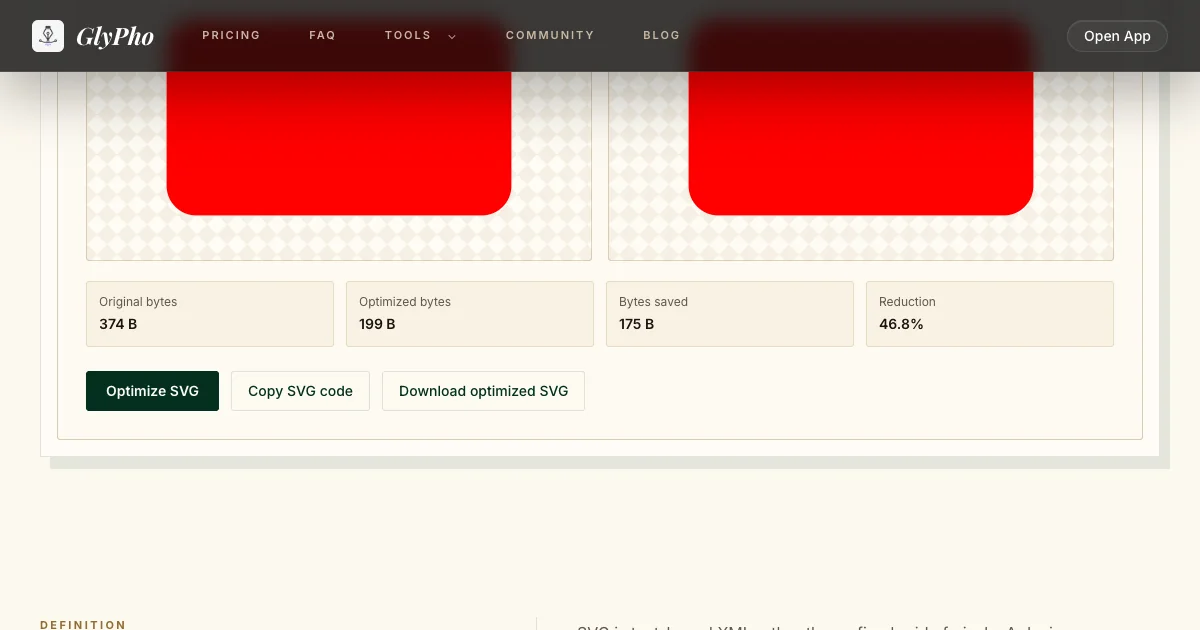
Real Safe run: figma-illustrator.svg went from 374 B to 199 B.
Test ID collisions in the real page
Create a small integration page with two instances of the optimized asset and at least one other SVG exported from the same design system. Inline them if production will inline them. Inspect gradients, masks, clip paths, ARIA references, and CSS selectors.
If IDs collide, solve the problem in the build or component boundary. A deterministic prefix based on the component name is easier to debug than a random value that changes every build. Update all references together and keep an automated rendering or DOM contract test.
When files are loaded as images, confirm caching, intrinsic dimensions, and theme behavior instead. A dark-mode icon may require currentColor, separate files, or CSS masking; optimization alone cannot choose that architecture.
Perform a visual and semantic comparison
Compare the original and optimized SVG at the intended pixel sizes, on light and dark backgrounds, and at high zoom for edge inspection. Look at thin strokes, small gaps, gradient boundaries, clipped edges, and shadow extents. Difference images can help, but a human should still inspect meaningful optical details.
Then inspect semantics. Does the file need an accessible name, or is it decorative? Do title and description IDs still resolve? Are classes and data hooks present? Does hover styling work? Do masks and gradients point to existing definitions? A matching first frame does not answer those questions.
Finally, compare the raw and Brotli-compressed sizes in the delivery environment. The raw saving is useful, but network transfer, cache policy, and reuse determine actual page performance.
Write a handoff note a developer can use
The handoff should identify the Figma source, export frame, intended embedding method, expected dimensions, theme assumptions, accessible behavior, optimization preset, and measured bytes. Mention whether text is live or outlined and whether IDs need build-time prefixing.
Include a short risk checklist: clip paths reviewed, masks reviewed, gradients reviewed, no unexpected raster image, no external resource, viewBox retained, two-instance collision test passed, and preview approved at target sizes. This information is more useful than a vague “optimized” label.
Store the source reference and delivery file together in the issue or asset record. When the design changes, the next person can repeat the process rather than guessing how the previous file was produced.
Figma export checklist
Before export, isolate the frame, delete obsolete hidden layers, inspect outline view, simplify intentional geometry, confirm transparency, and decide how text should ship. During export, verify bounds, viewBox, dimensions, clip paths, masks, gradients, effects, and embedded data. After export, record bytes, run Safe, compare visuals and semantics, test duplicate instances, and only then consider Balanced.
Do not flatten or outline everything merely to reduce markup. Do not delete IDs without following their references. Do not accept a preview as proof that accessibility or animation survived. Keep the Figma file as the editable authority.
For a broader preservation sequence, use the guide to reducing SVG size safely. For generated rather than editor-authored artwork, follow the AI-generated SVG production review. For terminology and delivery choices, see the compressor versus optimizer versus minifier decision guide.